


Git Merge vs Rebase: When to Use Each, With Real Examples
Git merge, rebase, fast-forward and squash compared with real command output, conflicts, force pushing and pull settings.
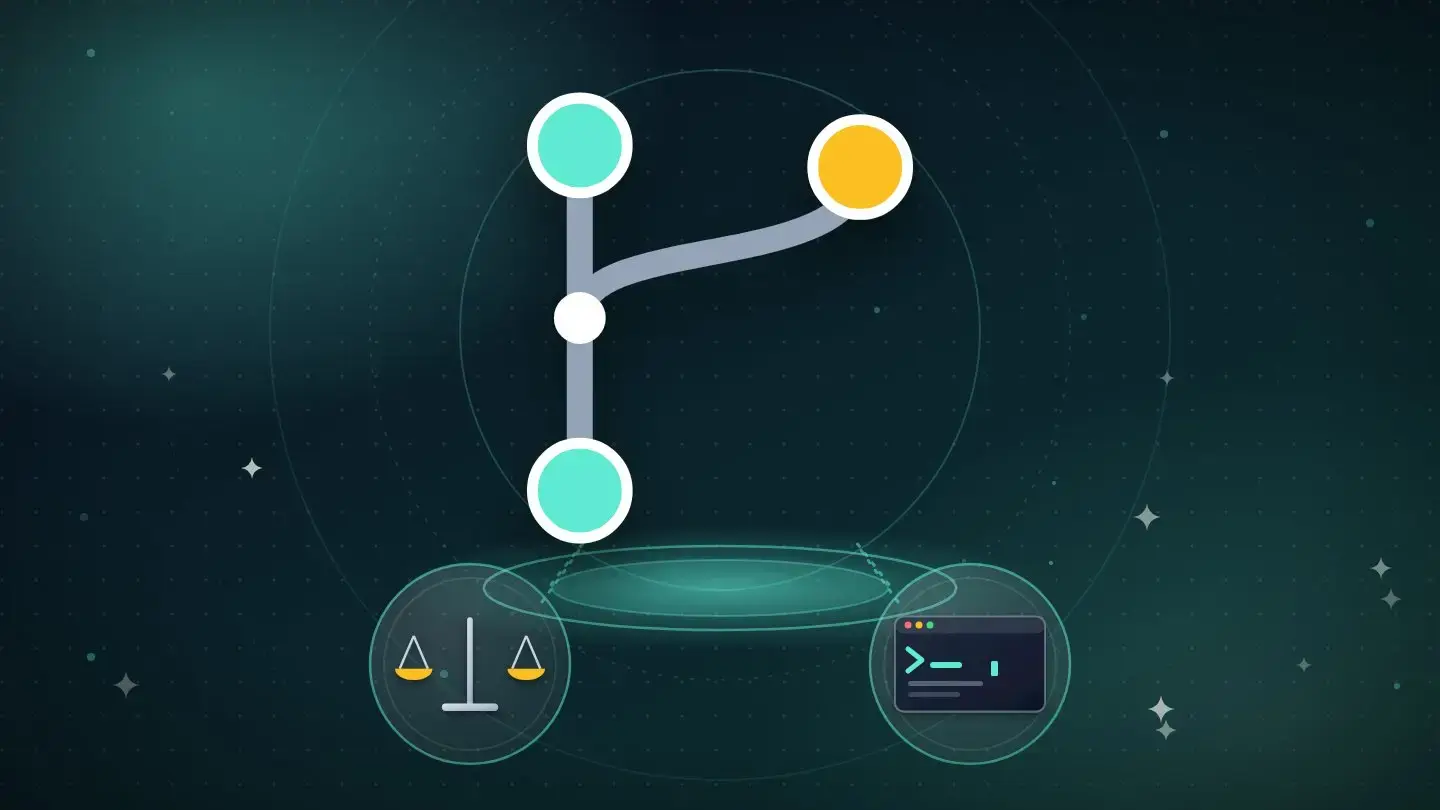
Merge and rebase each carry changes from one branch into another. They end up with the same files but a different history.
Merge keeps the branches as they happened and ties them together. Rebase replays your commits so that the history becomes one straight line.
I ran every example below in a real repository with Git 2.43, including the failures. Concepts and warnings were checked against Git's own documentation and the Pro Git book on October 23, 2026.
The short answer
Use merge when the branch is shared or when you want an honest record of what happened. Use rebase to clean up your own branch before sharing it, and never rebase commits that other people have already built on.
Squash is a third option for pull requests. It squeezes a whole branch into a single commit.
Fast-forward is not a separate tool but a result: when no new commits landed on the target branch, a merge can simply move the pointer.
Good to know
Pro Git sums up the main danger in one sentence. Never rebase commits that live outside your repository if other people may have built on them.
How merge and rebase work
Pro Git calls them the two main ways to bring one branch's changes into another.
A merge runs a three-way merge across the two branch tips and their latest common ancestor, then records the outcome as a new snapshot.
The git rebase manual describes rebase as replaying your commits on top of a different base. In its example, the commits you made on a topic branch are transplanted onto the current tip of master, one at a time.
What happens to the commits is the main difference. A merge leaves them untouched. A rebase abandons the old commits and creates new ones that are similar but different, as Pro Git puts it.
The repository I used
I built a small website repository. The main branch has three commits, and a feature branch called feature/footer started from the second one and has three commits of its own. Then main moved on with a banner commit.
$ git log --oneline --graph --all
* de2fac7 Add banner
| * 11751f2 Style footer
| * 3538911 Add footer links
| * 72d53e7 Add footer
|/
* b75481c Add navigation
* 4d16c2f Add home page
The history has diverged. Each of main and the feature branch has commits that the other lacks, so Git cannot simply move a pointer forward.
Merging
Switch to main and merge the feature branch. Git finds the common ancestor, combines the two sets of changes and records a merge commit with two parents.
$ git merge feature/footer -m "Merge feature/footer"
Merge made by the 'ort' strategy.
 footer.html | 3 +++
$ git log --oneline --graph
*   f475223 Merge feature/footer
|\
| * 11751f2 Style footer
| * 3538911 Add footer links
| * 72d53e7 Add footer
* | de2fac7 Add banner
|/
* b75481c Add navigation
* 4d16c2f Add home page
The graph shows exactly what happened. The feature branch split off, work continued on both sides and the merge commit joined them. Every original commit and its hash is untouched.
What merging gives you
Honest history
The graph records when work diverged and when it was joined.
Safe for shared branches
Existing commits never change, so nobody else's copy is invalidated.
One extra commit
Each merge adds a merge commit, which can clutter the log on busy projects.
Rebasing
Now the same situation in a fresh copy of the repository. Check out the feature branch and rebase it onto main.
Git takes the three feature commits, sets them aside, moves to the tip of main and replays them one at a time.
$ git switch feature/footer
$ git rebase main
Successfully rebased and updated refs/heads/feature/footer.
$ git log --oneline --graph --all
* cad8c30 Style footer
* b49025c Add footer links
* 8d6ed64 Add footer
* b3bd61f Add banner
* 4e4fbb0 Add navigation
* 1fedbc6 Add home page
The history is one straight line, as if the feature work had started after the banner commit. The three footer commits have new hashes, because they are new commits built on a new base.
Our Git tutorial shows the same effect on one commit. A commit went from 17ae2ba before the rebase to ef20bd6 after it, even though its change was the same.
Fast-forward merges
After the rebase, main has no commits that the feature branch lacks, so merging is trivial. Git reports a fast-forward and simply moves the main pointer. No merge commit is created.
$ git switch main
$ git merge feature/footer
Updating b3bd61f..cad8c30
Fast-forward
 footer.html | 3 +++
The git merge manual explains the options. By default, a merge fast-forwards when it can. The no-ff option always creates a merge commit, and the ff-only option refuses to merge unless a fast-forward is possible.
Fast-forward only, when branches have diverged
I tried ff-only on the diverged repository from the start. Git refused, exited with status 128 and listed the two ways forward in its hints.
$ git merge --ff-only feature/footer
hint: Diverging branches can't be fast-forwarded, you need to either:
hint:
hint:   git merge --no-ff
hint:
hint: or:
hint:
hint:   git rebase
fatal: Not possible to fast-forward, aborting.
That is useful as a safety rule. Teams that want a linear history can use ff-only to make sure no accidental merge commits sneak in.
No-ff after a rebase
You can combine the two ideas. Rebase the branch so it sits cleanly on top of main, then merge with no-ff.
You keep a clear marker of where the feature started and ended, but the feature commits sit on a clean base.
$ git merge --no-ff feature/footer -m "Merge feature/footer (no-ff)"
Merge made by the 'ort' strategy.
$ git log --oneline --graph
*   99a5674 Merge feature/footer (no-ff)
|\
| * 3b3e49c Style footer
| * 553fd7f Add footer links
| * 7d58d86 Add footer
|/
* 8bad004 Add banner
Squash merging
The git merge manual says squash produces the same working tree and index state as a real merge, but does not make a commit or record merge information.
You then commit once, which gives you a single commit with the same effect as the whole branch.
$ git merge --squash feature/footer
Squash commit -- not updating HEAD
$ git commit -m "Add footer"
$ git log --oneline --graph --all
* 0cd2ede Add footer
* 813a28e Add banner
| * 5d28331 Style footer
| * ddc9593 Add footer links
| * d0b1457 Add footer
|/
* f7443c5 Add navigation
* d4be11d Add home page
Look at the graph. Main has one clean commit, and the three original commits still exist only on the feature branch.
Git does not record a link between them, which is why it is a good fit for pull requests that you delete afterward.
One detail on Bitbucket: its documentation says that if you run a squash merge locally and push, the pull request stays open. Bitbucket uses the commit graph to detect merged work, and a squash leaves no link to the branch.
Interactive rebase
Interactive rebase lets you edit a branch's commits before sharing them. You can reorder, reword, combine or drop them. According to the manual, rebase can also reorder or combine commits.
I turned the three footer commits into one using fixup, which melds a commit into the one before it and discards its message. I used a small script instead of the editor, but the todo list is the same.
$ git log --oneline main..feature/footer
0523388 Style footer
83a7fcd Add footer links
07754cd Add footer
$ git rebase -i main
$ git log --oneline --graph --all
* ac038fa Add footer
* 10fc888 Add banner
* 9250152 Add navigation
* 8db9a13 Add home page
In a real session, git opens an editor with one line per commit. Change pick to fixup or squash on the lines you want to combine, and save.
Conflicts in a merge and in a rebase
Both can conflict when the same lines changed on both sides. The difference is when you resolve it.
A merge conflict is resolved once. A rebase replays commits one at a time, so you may resolve a conflict for each commit.
I changed the same title line on main and on a branch, then rebased. Git stopped, told me which commit could not be applied and printed the three ways out.
$ git rebase main
Auto-merging page.txt
CONFLICT (content): Merge conflict in page.txt
error: could not apply 8c59a8c... Rename title on branch
hint: Resolve all conflicts manually, mark them as resolved with
hint: "git add/rm <conflicted_files>", then run "git rebase --continue".
hint: You can instead skip this commit: run "git rebase --skip".
hint: To abort and get back to the state before "git rebase", run "git rebase --abort".
The sides are swapped
Look at the conflict markers. The part above the equals line is main's version, and your own commit is below it. That is the opposite of a merge.
<<<<<<< HEAD
title: My Notes
=======
title: Notes App
>>>>>>> 8c59a8c (Rename title on branch)
The git rebase manual explains why. During a rebase, Git replays each of your commits onto the upstream branch, so the side labelled ours is the work replayed so far, starting from upstream, and theirs is your own branch.
The manual says the sides are swapped.
Fix the file, add it and continue. You end up with one commit sitting on top of main.
$ printf "title: My Notes App\n" > page.txt && git add page.txt
$ git rebase --continue
Successfully rebased and updated refs/heads/edit-title.
$ git log --oneline --graph --all
* 7b8e32e Rename title on branch
* 280cfbe Rename title on main
* 8501eed Add page
To back out, git rebase –abort restores everything to the state before you began.
The golden rule and force pushing
Pro Git's warning exists for a reason. When you rebase, you are replacing commits. If those commits were already pushed and someone built on them, rewriting them forces everyone else to untangle the difference.
This is what happens when you rebase a branch that you already pushed. I pushed a topic branch, moved main on, rebased the topic and tried a normal push. The remote rejected it.
$ git rebase main
Successfully rebased and updated refs/heads/topic.
$ git push
 ! [rejected]        topic -> topic (non-fast-forward)
error: failed to push some refs
hint: Updates were rejected because the tip of your current branch is behind
hint: its remote counterpart.
The push is rejected because your rebased history no longer contains the commits the remote has. Replacing them needs a forced push. The safer way is force-with-lease.
$ git push --force-with-lease
 + 0e15a49...b8a90df topic -> topic (forced update)
Why with-lease is safer
The git push manual explains the idea. A plain force would overwrite whatever is on the remote, including a teammate's commit that you have not seen.
With the lease, Git updates the remote branch only if it still points where you expect.
I tested that. A teammate pushed a commit to the same branch, and then I tried force-with-lease. Git refused with stale info instead of destroying their work.
$ git push --force-with-lease
 ! [rejected]        topic -> topic (stale info)
error: failed to push some refs
When that happens, fetch, look at what your teammate did and decide how to combine it. Our guide to every cause of a rejected push covers more of these errors.
What git pull does
The git pull manual says git pull with the rebase option runs git rebase, and with the no-rebase option runs git merge. So pull itself is a fetch plus either a merge or a rebase.
I tried a plain pull when my local branch and the remote had both moved. Git refused to guess and told me how to set a preference.
$ git pull
hint: You have divergent branches and need to specify how to reconcile them.
hint:   git config pull.rebase false  # merge
hint:   git config pull.rebase true   # rebase
hint:   git config pull.ff only       # fast-forward only
fatal: Need to specify how to reconcile divergent branches.
Pulling with rebase put my local commit on top of the remote one, with no merge commit.
$ git pull --rebase
Successfully rebased and updated refs/heads/main.
$ git log --oneline --graph
* 98035d8 Local commit
* cc14938 Remote commit
* 13399f5 Main moves on
* c81267a Add f
Pick a default once with git config, and use the global option if you want it for every repository.
Merge methods on GitHub, GitLab and Bitbucket
Hosting services offer the same choices as buttons on a pull request. GitHub's documentation says the right choice depends on the history your team wants and how much detail it needs to keep.
| Method | What it does |
|---|---|
| Merge commit | Preserves every commit from the branch and adds a merge point |
| Squash and merge | Folds the branch into a single commit on the target |
| Rebase and merge | Replays the branch commits onto the target without a merge commit |
GitLab's documentation lists the project merge methods as merge commit, merge commit with semi-linear history and fast-forward merge. It also lets a project choose whether squashing is not allowed, allowed, encouraged or required.
Bitbucket's documentation lists merge strategies for pull requests, including squash, and notes that you can revert a merged pull request.
Check each service's settings, because administrators can restrict which methods people may use. Our comparison of GitHub vs GitLab vs Bitbucket covers the platforms.
How to choose
This table is our advice, built on the documentation and the sessions above.
| Situation | Use |
|---|---|
| Your own branch, not pushed yet, and you want a tidy history | Rebase, then merge |
| A branch several people work on | Merge |
| A pull request with messy, noisy commits | Squash and merge |
| Keeping up with main while you work | Rebase your own branch onto main, or merge main into it |
| You want the history to show where features began and ended | Merge with no-ff |
| You want to forbid accidental merge commits | Fast-forward only |
A simple rule for teams
This is our advice. Feel free to rebase commits that exist only on your own machine. Once a branch is pushed and others use it, switch to merging.
If a team wants a linear history, agree on squash or rebase at merge time and set it in the hosting service.
Both views of history are valid. Pro Git describes one view as history being a record of what actually happened, and the other as a story of how the project was made.
Merge fits the first view and rebase fits the second.
Common mistakes
Rebasing shared commits
Others base work on them, and rewriting them causes messy conflicts.
Plain force pushes
Use force-with-lease so you cannot overwrite a teammate's push.
Squashing everything by habit
You lose the individual steps, which may matter for review and debugging.
Panicking mid-rebase
Run git rebase –abort to return to where you started.
Forgetting the sides are swapped
In a rebase conflict, the top part is the branch you are rebasing onto.
How to recover from a bad rebase
If a rebase goes wrong after you finish it, the reflog still records where your branch used to be. Our Git tutorial shows how to read the reflog and reset to an earlier entry.
Frequently asked questions
How do git merge and git rebase differ?
Merge joins two histories with a merge commit and leaves existing commits alone. Rebase replays your commits onto a fresh base, which creates new commits and a straight history.
Is rebase better than merge?
Neither is better in every case. Rebase gives a cleaner history for your own branches, and merge is safer for shared ones.
What is a fast-forward merge?
A merge in which the target branch has gained no new commits, so Git only moves its pointer and makes no merge commit.
What does squash do?
It turns all the changes from a branch into one commit on the target branch.
Is git pull a merge or a rebase?
It is a fetch followed by either, depending on your settings or the rebase option.
When is it safe to force push?
Only to a branch that you alone use, and even then prefer force-with-lease.
A quick checklist
From circuittimes.com/cloud-dev/git-merge-vs-rebase/
Was this guide helpful?
What went wrong?
 Read nextComparison 11 min readJest vs Vitest: Which Test Runner to Use in 2026Jest and Vitest compared on ESM, TypeScript, config, speed and mocking, with a real test of 35 tests in both runners.
 Comparison 10 min readPlaywright vs Cypress: Which Testing Tool in 2026
 Comparison 12 min readGitHub vs GitLab vs Bitbucket: Which to Choose in 2026
 Explainer 14 min readMonorepos Explained: What They Are and When to Use One
The briefing, without the noise.
The stories that matter in technology, every weekday morning.
Free. Unsubscribe in one click.