


Git Tutorial for Beginners: From Basics to Advanced
Learn Git with real command output, from your first commit to branches, merge conflicts, rebase, reset and reflog recovery.
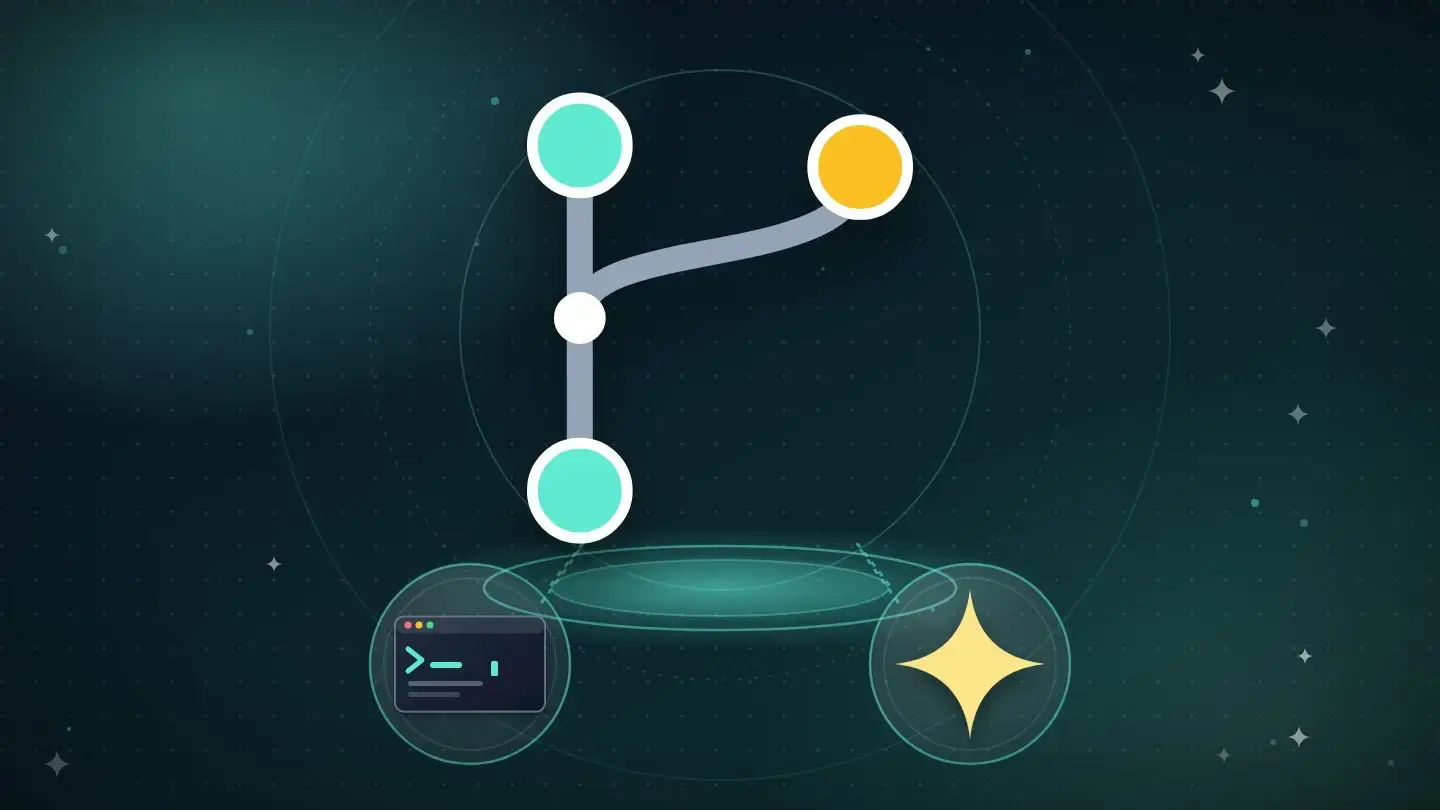
Git is a version control system. It records snapshots of your project so you can see what changed, go back to an earlier state and work on several ideas at once.
This tutorial takes you from your first commit to rebasing and recovering lost work.
Every command and output below comes from real sessions I ran with Git 2.43.0. Commit hashes will differ on your machine. Concepts were checked against Git's official documentation on October 22, 2026.
The short answer
Learn this loop first: change files, check status, add the files you want, commit them with a message. Then learn branches, merging and how to undo mistakes safely.
Advanced work such as rebasing, cherry-picking and reflog recovery builds on the same ideas. Practice in a throwaway folder until each step feels familiar.
Good to know
Git is not GitHub. Git is the tool on your computer, and GitHub is one of the services that can host a copy of your repository.
What Git is
The Pro Git book says Git thinks of its data as a series of snapshots of a miniature file system. Each time you commit, Git takes a picture of what your files look like and stores a reference to it.
To be efficient, if a file has not changed, Git does not store it again. It stores a link to the previous identical file. That is why branching is cheap and history is fast to search.
The three places your work lives
The book names three areas: the directory you edit, called the working tree, then the staging area and the Git directory. Knowing them explains most commands.
| Place | What it is |
|---|---|
| Working tree | The files you see and edit, checked out from the Git directory |
| Staging area | A file, also called the index, that stores what will go into your next commit |
| Git directory | The database where Git stores your commits and history |
Set up Git
Tell Git who you are, because that information goes into every commit. Our terminal and shell setup guide covers the same steps with more context. I set the default branch name to main as well.
$ git --version
git version 2.43.0
$ git config --global user.name "Sam Example"
$ git config --global user.email "sam@example.com"
$ git config --global init.defaultBranch main
Your first repository
Create a folder and turn it into a repository with git init. Git prints the path of the hidden folder where it keeps its data.
$ mkdir notes-app && cd notes-app
$ git init
Initialized empty Git repository in ~/notes-app/.git/
$ echo "# Notes app" > README.md
$ git status
On branch main

No commits yet

Untracked files:
  (use "git add <file>..." to include in what will be committed)
	README.md

nothing added to commit but untracked files present (use "git add" to track)
Git says the file is untracked, which means it exists but is not part of any commit yet.
Stage and commit
Use git add to move a change into the staging area, then git commit to record it. The short status format shows A for added.
$ git add README.md
$ git status --short
A  README.md
$ git commit -m "Add README"
[main (root-commit) e1d101d] Add README
 1 file changed, 1 insertion(+)
 create mode 100644 README.md
Write messages that say what changed and why. Your future self will search them.
See what changed
Edit the file, then use git diff to see the change before you stage it. Lines starting with a plus were added.
$ echo "A tiny app for notes." >> README.md
$ git diff
diff --git a/README.md b/README.md
index 522d933..d712bea 100644
--- a/README.md
+++ b/README.md
@@ -1 +1,2 @@
 # Notes app
+A tiny app for notes.
$ git add README.md && git commit -m "Describe the app"
$ git log --oneline
8f52d02 Describe the app
e1d101d Add README
The oneline option of git log prints a short hash and the message for each commit, newest first.
Branches
A branch lets you work on an idea without touching your main line. Git's manual says git switch switches branches, and that the c option creates a new one.
$ git switch -c feature/todo
Switched to a new branch 'feature/todo'
$ echo "- buy milk" > todo.txt
$ git add todo.txt && git commit -m "Add todo list"
[feature/todo 9b56338] Add todo list
Older tutorials use git checkout for the same job, so you will see both.
Merging
When your branch is ready, switch back and merge it. If main has not moved, Git simply moves the pointer forward. The Pro Git book calls this a fast-forward.
$ git switch main
$ git merge feature/todo
Updating 8f52d02..9b56338
Fast-forward
 todo.txt | 1 +
 1 file changed, 1 insertion(+)
 create mode 100644 todo.txt
$ git branch -d feature/todo
Deleted branch feature/todo (was 9b56338).
The delete command removes the label, not your work, because the commits are already on main.
Merge conflicts
A conflict happens when two branches change the same part of the same file. The Pro Git book says Git cannot merge those cleanly. Here I changed the same title line on two branches.
$ git merge fix-title
Auto-merging README.md
CONFLICT (content): Merge conflict in README.md
Automatic merge failed; fix conflicts and then commit the result.
$ cat README.md
<<<<<<< HEAD
# My Notes
=======
# Notes App (fixed)
>>>>>>> fix-title
Everything between the first marker and the equals line is your current branch. Everything between the equals line and the last marker is the incoming branch.
Resolve a conflict
Edit the file so it contains what you want, remove the marker lines, stage it and commit.
$ echo "# Notes App" > README.md && git add README.md && git commit -m "Merge fix-title, keep one title"
$ git log --oneline --graph
*   afc5d41 Merge fix-title, keep one title
|\
| * ff2dc60 Rename title on branch
* | 59a5d7f Rename title on main
|/
* 9b56338 Add todo list
The graph option draws the two lines of work joining at the merge commit.
Undo mistakes safely
Git's manual says git restore restores working tree files from a source, and its staged option affects the index. Use these when you have not committed yet.
$ echo "oops" >> todo.txt
$ git restore todo.txt
$ cat todo.txt
- buy milk
$ echo "- call Sam" >> todo.txt && git add todo.txt
$ git restore --staged todo.txt
$ git status --short
 M todo.txt
The first restore threw away an unwanted edit. The second moved a change out of the staging area but kept the edit in the file.
Undo a commit that is already shared
To undo a commit without rewriting history, use git revert. It adds a new commit that reverses the old one, which is safe for shared branches.
$ git commit -am "Add call task"
$ git revert --no-edit HEAD
[main 6c1517e] Revert "Add call task"
 1 file changed, 1 deletion(-)
$ cat todo.txt
- buy milk
Which undo command to use
This table is our summary of the commands above and the reset commands later in this guide.
| Situation | Command |
|---|---|
| Discard an unwanted edit in a file | git restore file |
| Unstage a file but keep the edit | git restore –staged file |
| Reverse a commit that others may have | git revert commit |
| Move your branch back and keep the changes staged | git reset –soft |
| Move your branch back and discard the changes | git reset –hard, with care |
Ignore files
A gitignore file lists patterns of files Git should leave alone. Git's documentation says it specifies intentionally untracked files, and that files already tracked are not affected.
$ printf "node_modules/\n.env\n" > .gitignore && echo "SECRET=1" > .env && git status --short
?? .gitignore
The .env file did not appear in the status, so it cannot be committed by accident. Add the ignore rule before you create files you never want to share.
Stash unfinished work
Stash puts your uncommitted changes aside so you can switch tasks. Bring them back with pop.
$ echo "- draft" >> todo.txt && git stash
Saved working directory and index state WIP on main: bdeaa88 Ignore local files
$ git stash list
stash@{0}: WIP on main: bdeaa88 Ignore local files
$ git stash pop
On branch main
Changes not staged for commit:
	modified:   todo.txt
The stash list shows what is waiting, and pop applies it and removes it from the list.
Tags
A tag marks a commit, often a release.
$ git tag v1.0
$ git tag
v1.0
Work with a remote
A remote is another copy of your repository, often on a hosting service. This session used a bare repository on disk as the remote. The upstream option on push links your local branch to the remote one.
$ git remote add origin ../remote.git
$ git push -u origin main
To ../remote.git
 * [new branch]      main -> main
branch 'main' set up to track 'origin/main'.
$ git clone remote.git copy
Cloning into 'copy'...
done.
If a push fails, Git prints a hint. Our guides on every cause of a rejected push, a push rejected by a protected branch and the src refspec error cover the common ones.
Choosing where to host? Our comparison of GitHub vs GitLab vs Bitbucket covers plans and limits.
Rebase
Rebase moves your branch's commits on top of another branch, which gives a straight history. Here feature started from an older main, then main moved.
$ git log --oneline --graph --all
* 3249aca Update a.txt on main
| * 17ae2ba Add feature work
|/
* d24af48 Add a.txt
$ git switch feature
$ git rebase main
Successfully rebased and updated refs/heads/feature.
$ git log --oneline --graph --all
* ef20bd6 Add feature work
* 3249aca Update a.txt on main
* d24af48 Add a.txt
Notice the commit hash changed from 17ae2ba to ef20bd6. Rebase creates new commits, so do not rebase commits other people already have.
Cherry-pick
Cherry-pick copies one commit onto your current branch. This is useful for a fix that lives on another branch.
$ git switch main
$ git cherry-pick hotfix
[main 755e3b9] Add fix
 1 file changed, 1 insertion(+)
 create mode 100644 fix.txt
The new commit has a different hash because it is a copy applied on a different base.
Reset, soft and hard
Reset moves your branch pointer. A soft reset keeps your changes staged, and a hard reset discards them from your files. The soft reset below left the change staged.
$ git reset --soft HEAD~1
$ git status --short
M  a.txt
$ git commit -m "Add three (again)"
Be careful with the hard option. It removes uncommitted changes from your working files, and those cannot be recovered from Git because they were never committed.
Recover lost commits with reflog
Committed work is much harder to lose. The reflog records where your branch pointer has been. After a hard reset, I used it to find and restore the commit I had moved away from.
$ git reset --hard HEAD~1
HEAD is now at 755e3b9 Add fix
$ git reflog -4
755e3b9 HEAD@{0}: reset: moving to HEAD~1
0f3a2f2 HEAD@{1}: commit: Add three (again)
755e3b9 HEAD@{2}: reset: moving to HEAD~1
342f140 HEAD@{3}: commit: Add three
$ git reset --hard HEAD@{1}
HEAD is now at 0f3a2f2 Add three (again)
Reflog entries are local to your clone and do not last forever, so recover quickly.
Amend and search
Amend fixes your last commit, including its message. The pickaxe search shows which commit added or removed a piece of text.
$ git commit --amend -m "Add three (reworded)"
$ git log --oneline -S"three"
8581c58 Add three (reworded)
Amending rewrites the commit, so avoid it after you have pushed.
Commands at a glance
| Command | What it does |
|---|---|
| git init | Starts a repository in the current folder |
| git status | Shows what changed and what is staged |
| git add | Stages a change for the next commit |
| git commit | Records the staged changes |
| git diff | Shows unstaged changes |
| git log –oneline | Lists commits briefly |
| git switch -c name | Creates and switches to a branch |
| git merge name | Merges a branch into the current one |
| git restore | Discards edits or unstages files |
| git revert | Adds a commit that reverses another |
| git stash | Sets uncommitted changes aside |
| git push, git clone | Share and copy repositories |
| git rebase, git cherry-pick | Rewrite or copy commits |
| git reflog | Shows where your branch has been |
How to practice
This section is our advice. The Pro Git book is available to read online at git-scm.com, and it is the standard reference. Pair it with practice in a throwaway folder.
Repeat the loop
Make a small change, stage it and commit it until it is automatic.
Break things on purpose
Create a conflict in a practice repository, then resolve it.
Use a practice remote
A local bare repository behaves like a hosted one.
Read each hint
Git's error messages usually tell you the next command to run.
Common mistakes
Committing secrets
Add ignore rules before you create files you never want to share.
Using reset hard casually
It discards uncommitted work for good.
Rebasing shared commits
It rewrites history other people already have.
Vague messages
Messages like fix make history hard to search.
Working on main directly
Branches keep experiments separate.
Frequently asked questions
What is Git used for?
Recording the history of a project so you can review changes, undo mistakes and work on several ideas in parallel.
What is the difference between Git and GitHub?
Git is the version control tool on your computer. GitHub is a service that hosts copies of repositories.
How do I undo my last commit?
Use git revert to add a commit that reverses it, or git reset if the commit has not been shared.
What does git add do?
It moves a change into the staging area so it goes into your next commit.
What is a merge conflict?
It is when two branches change the same part of a file and Git cannot combine them automatically.
What is the difference between rebase and merge?
Merge joins two lines of history with a merge commit. Rebase replays your commits on top of another branch for a straight history.
A quick checklist
From circuittimes.com/cloud-dev/git-tutorial/
Was this guide helpful?
What went wrong?
 Read nextComparison 13 min readGit Merge vs Rebase: When to Use Each, With Real ExamplesGit merge, rebase, fast-forward and squash compared with real command output, conflicts, force pushing and pull settings.
 Comparison 11 min readJest vs Vitest: Which Test Runner to Use in 2026
 Comparison 10 min readPlaywright vs Cypress: Which Testing Tool in 2026
 Comparison 12 min readGitHub vs GitLab vs Bitbucket: Which to Choose in 2026
The briefing, without the noise.
The stories that matter in technology, every weekday morning.
Free. Unsubscribe in one click.